 Audivoya
From your first key
to your first listen.
Install Audivoya 0.2.16 from the Chrome Web Store. The Edge Add-ons listing is not available yet.
Install from the Chrome Web Store.
Audivoya 0.2.16 is available for desktop Chrome. Open Audivoya in the Chrome Web Store, then select Add to Chrome. This website does not distribute extension files.
Install for Google ChromeThe Edge Add-ons release is still being prepared. Its official install link will appear here after publication. Avoid unofficial installers.
After installing in Chrome, open the Extensions menu and pin Audivoya for easy access. Open the media tab before opening the extension.
Open Edge's Extensions menu and show Audivoya in the toolbar. If Edge asks for Google API access after Start dubbing, allow the displayed Google origin to enable translation. Audio monitor needs no Gemini key and keeps audio on your device.
To update or remove the extension, open Extensions → Manage extensions. Version 0.2.16 restores your encrypted key after restarting the browser or reloading Audivoya. Earlier 0.2.10 builds use temporary session storage and require re-entry after restart.
Get a Gemini API key.
Gemini access depends on your account, age, country, available models and quota. Check Google's API terms and current pricing first.
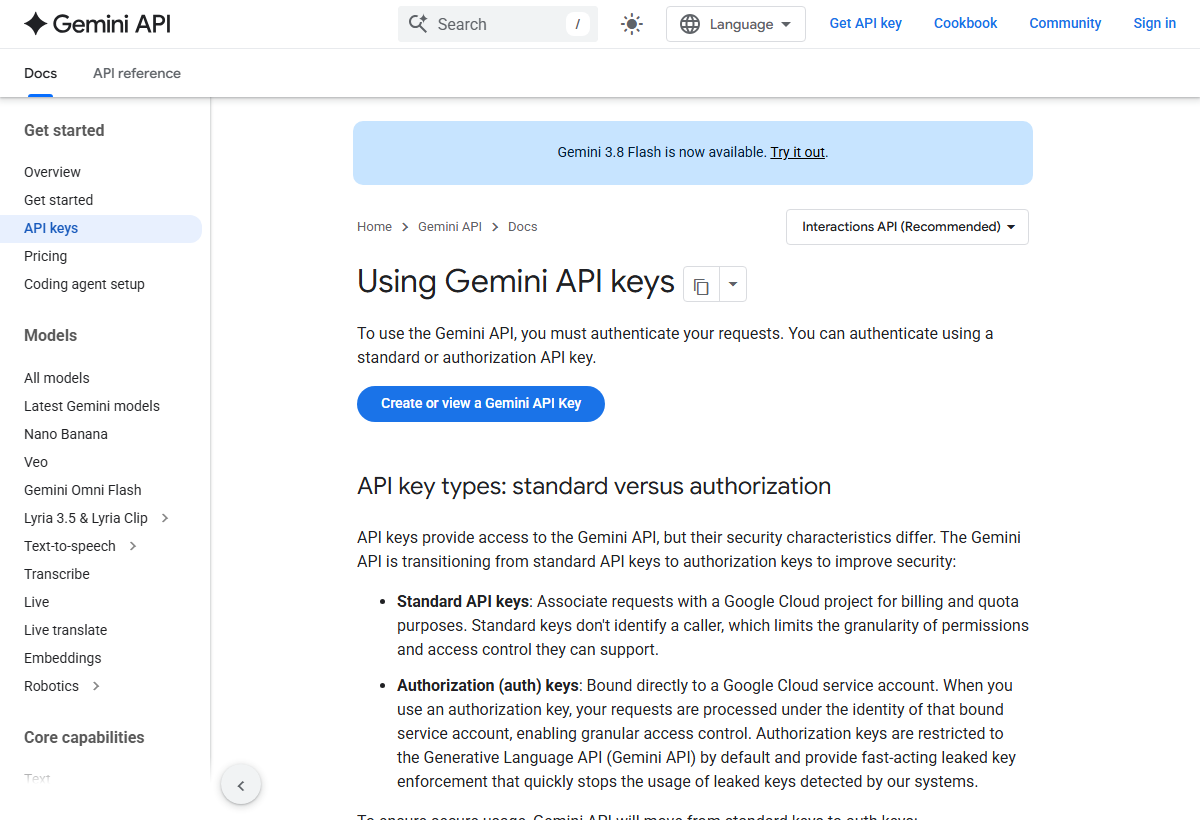
- Open Google AI Studio → API keys and sign in to your Google account.
- If your existing Cloud project is missing, open the dashboard's Projects page, choose Import projects, select your project and import it.
- Return to API Keys. Choose Create API key and select an eligible project. Google may provide a default project for a new account.
- Copy the newly created key privately. Paste it into the Gemini API key field inside the extension, never into this website.
Button names and account access can change. Follow Google's current key instructions if your dashboard differs.
Do not publish it, include it in screenshots or send it to support. Use a separate project/key for this extension and review billing and quota controls in Google Cloud. Unpaid API content may be used to improve Google's products; review your account terms before sending private media.
Open a tab. Choose a language. Start.
- Open and play media you are permitted to process in a supported website tab.
- Click the Audivoya icon. Check the source hostname shown under Dub this tab.
- Choose your output language under Listen in. The selector covers all 78 documented Gemini Live Translation languages; type a language name while the selector is focused to jump through the list.
- Enter your Gemini API key once. The latest candidate saves it automatically in this browser profile and restores it after restart; no checkbox or extra application is needed.
- Read the visible Google audio-sharing and fees notice (its Privacy & data link has the details). Then choose Start dubbing, or Start with sync window to also open a delayed picture viewer (step 5). Allow the optional Google API permission if your browser prompts you.
- Give the connection and speech translation time to begin. Use Stop session or Alt + Shift + S to end capture.
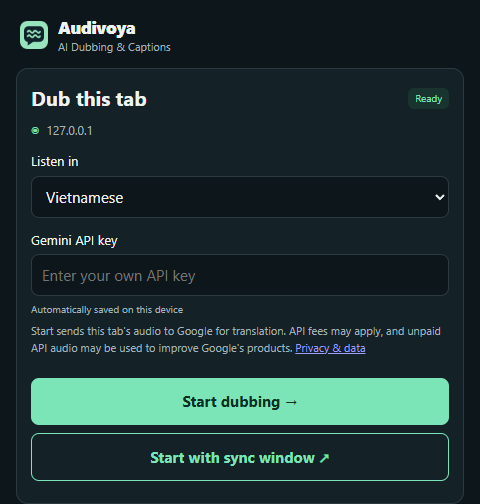
Closing the panel keeps a native session running. By default, it also continues through videos, reloads and page changes on the same website in that tab. Stop, closing the source tab, moving to a different origin or the selected time limit (if any) ends capture. Stop removes active capture and transport, while the encrypted saved key remains available for reuse. Forget key removes the saved key and stops capture.
Adjust audio, captions and speed.
Open Audio & settings for website continuation, session mode, the time limit, volumes and captions. Audio monitor keeps audio on your device and does not contact Gemini. Live volume controls appear once a session starts.
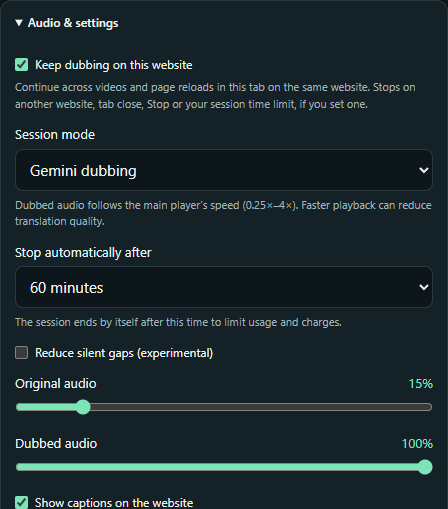
- Keep dubbing on this website: enabled by default. New videos, page changes and reloads in the selected tab continue the session on the same origin (scheme, hostname and port). Another website or subdomain stops capture; new tabs are not followed. Turn this setting off to stop when changing pages. The original time limit still applies, if you set one.
- Playback speed: dubbed speech follows the main observable HTML player's speed from 0.25× to 4×. Hidden or custom players may not expose changes.
- Captions: read original and translated text in the panel, and optionally on the website.
- Export VTT: downloads captions you have received. Timing follows arrival, so it is not a word-aligned subtitle master.
- Stop automatically after: choose 5, 15, 30 or 60 minutes, 2, 3, 4 or 8 hours, or Never. The default is 60 minutes, and your choice is saved. With Never, capture and audio sent to Google continue, and Google API fees may accrue, until you press Stop, close the tab or leave the website. Provider quota and connection limits still apply.
Give translated speech a little room.
Choose Start with sync window, the outlined button below Start dubbing, instead of the plain Start. The extension opens a viewer with a locally buffered picture. The default delay is four seconds; adjust it in the viewer to improve alignment.
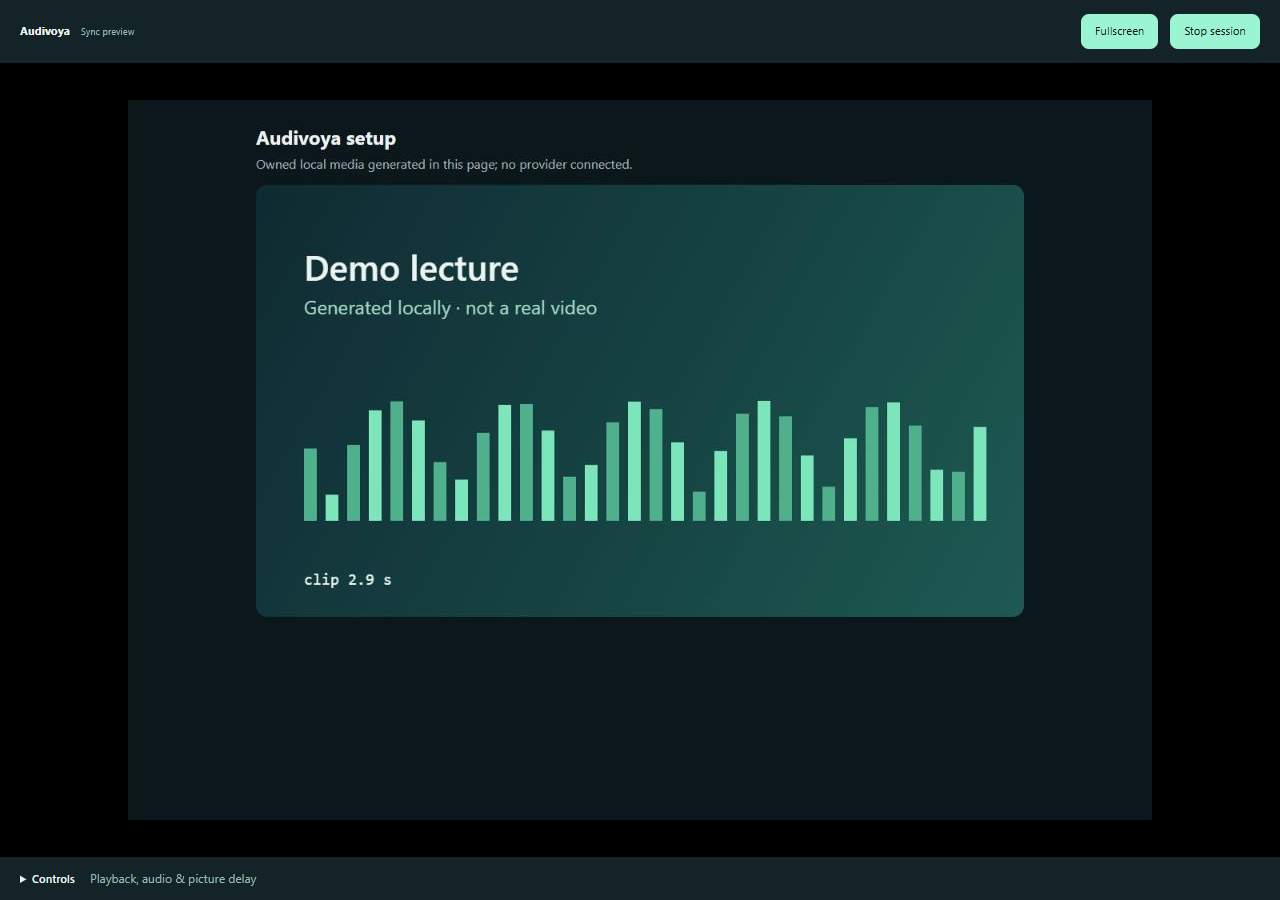
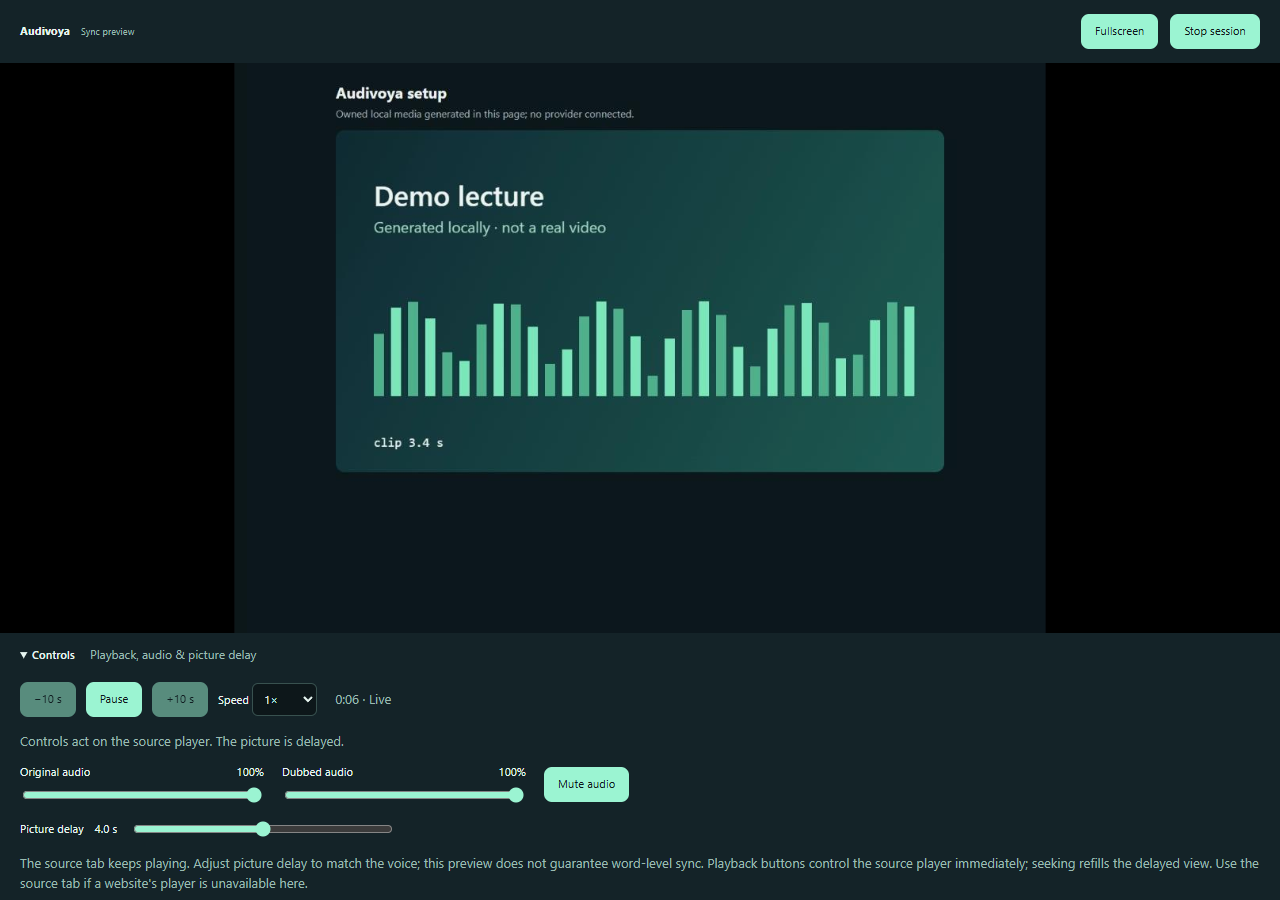
The Controls panel starts collapsed to give the picture more space. The picture resizes within the remaining space when you expand Controls. Use Fullscreen to fill the viewer window; the button changes to Exit fullscreen and follows browser fullscreen changes, including F11. Click again to restore the previous normal or maximized mode. Expand it to play/pause, skip ten seconds, select playback speed, adjust Original audio and Dubbed audio volumes, or mute. Playback commands act immediately on the source player; seeking refills the delayed picture. Use the original tab if the website blocks Play or its custom/embedded player is unavailable here. Keep the viewer open while watching; closing it stops the session. Temporary translation reconnects preserve its delayed picture and original audio. Pause and seek discard old translated audio; seeks while paused wait for Play. Frequent seeks may temporarily wait for a provider-connection slot. If translated audio falls behind during slow playback or a returning burst, Audivoya resynchronizes its bounded buffer without ending capture and shows a notice that speech may be skipped. When a session ends, Audivoya closes its viewer so a new Start opens one fresh window. Captured pictures stay on your device, but may include visible website UI. This adds a picture delay, does not speed up inference and does not guarantee exact alignment.
A few quick checks.
Start is unavailable or no media tab is found.
Open the actual media website tab before the extension. Browser settings, store pages and unsupported URLs cannot be captured. Close and reopen the panel after switching tabs. Check the displayed hostname.
The key is rejected or translation does not start.
Check project permissions, model access, account region, quota and billing in Google AI Studio. Create a replacement key if your current one is blocked or compromised. In the latest candidate, restart does not require re-entry. For a damaged local record, use Forget key and enter a replacement. Earlier 0.2.10 builds require re-entry after restart.
Speech is late or sounds rushed.
Try normal playback speed, reduce competing audio and check your network. For video, try the experimental sync window and adjust its picture delay. Faster playback can outpace inference; guaranteed instant translation is not supported.
I need to report a problem.
Include browser and extension versions, safe reproduction steps and redacted diagnostics. Never send API keys or private recordings. Contact support.